
Support: AV-30-E
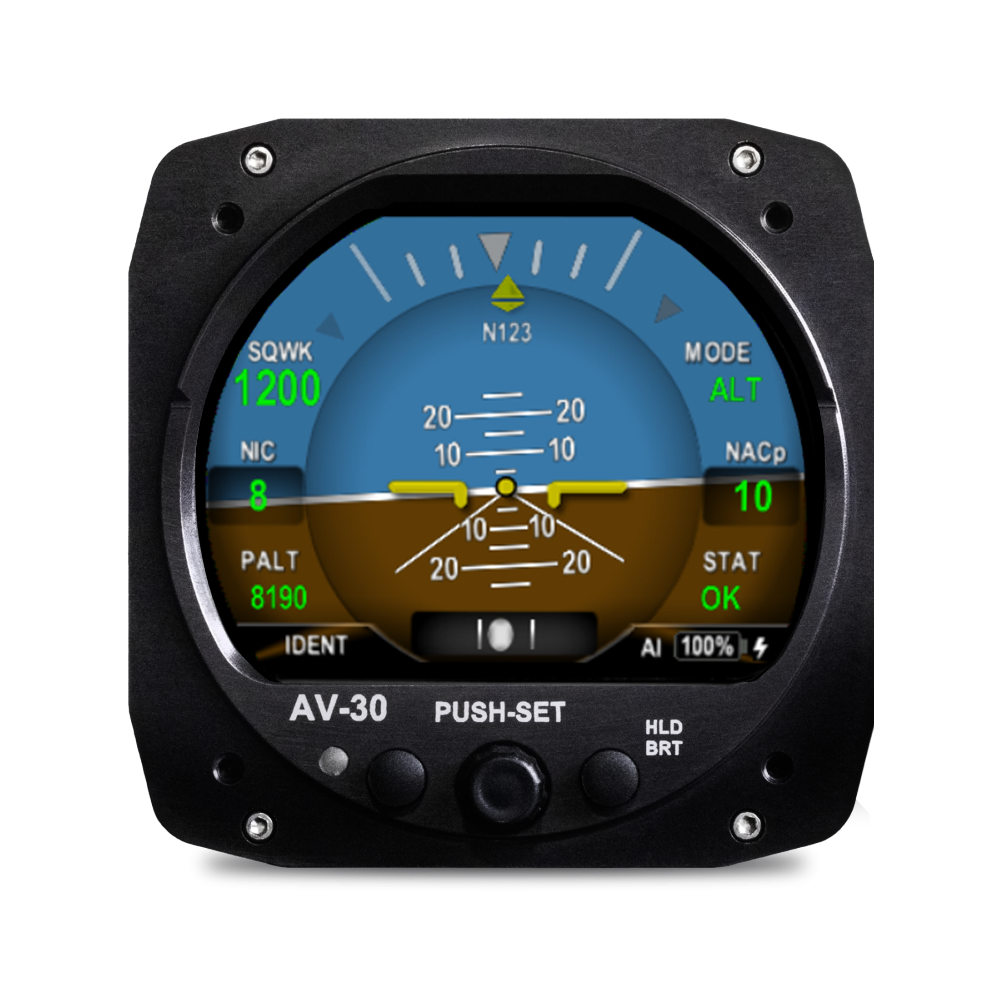
The AV-30-E transforms your cockpit with a feature-rich digital display—while maintaining the classic 3” round-gauge aesthetic.
Designed for both certified (AV-30-C) and experimental (AV-30-E) aircraft, the AV-30 replaces your traditional attitude indicator or directional indicator with an advanced, fully customizable electronic flight instrument, without requiring major panel modifications.
Below you’ll find everything you’ll need to install, maintain, and learn about your AV-30-E. In addition to that you can fill out a support ticket for advanced problems and get into the details of Certification and Documentation.
FAQs
Frequently Asked Questions (FAQs)
How can I update my AV-30?
Please refer the Current Service Bulletin. Video
Where do I buy the update Cable for the update?
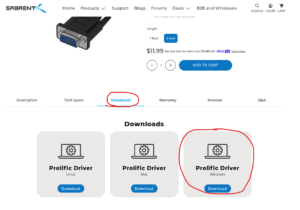
Where do I find the "Driver" for the update cable?
It is available on the Sabrent website.
Why does the AV-30 not indicate airspeed less than 40knots?
The sensors that we use would make reading anything under 40 knots unreliable. We have made the AoA function down to 25knots even though the airspeed is not indicating with software 3.1.1.
My AV-30 remains on after I shut the master off. and it indicates airspeed on the ground.
A pitot zero calibration will be required in order to resolve this issue. Please refer to the installation manual. To shut off the AV-30 until the pitot zero is completed, press and hold the left and right buttons until it shuts off. Video
My AV-30 battery shows a battery failure.
Power AV-30 on and allow align and battery test to show fail, power AV-30 off and allow screen to go dark. Repeat the steps up to 15 times. After the 15th time the battery still shows failure please contact support.
How do I adjust the DG heading on my AV-30?
Please make sure that the display shows DG HEADING and not GPS TRK, you will select the center knob until the display shows DG ADJUST, use the center knob to scroll either left or right to set proper DG heading.
Watch this video on the difference of GPS track and DG HDG.
My heading drifts and I have the AV-Mag.
Confirm that Serial 4 has been set to AV-Mag and that the configuration has been completed correctly. Watch the video on the Calibration of the AV-Mag.
AV-Link FAQs
Please refer to the AV-Link Support page.
AV-Mag FAQs
Please refer to the AV-Mag Support Page.
AV-HSI FAQs
Please refer to the AV-HSI Support Page.
AV-APA FAQs
Please refer to the AV-APA Support Page.
Where do I purchase?
For the AV-30-E Click Here.
For the Accessories Click Here.
After update to 3.1.1 the AoA has a red X, why?
The AoA was updated in the latest release. Previously the AoA would not work below 40Knots. Now with the latest improvements it now works down to 25knots. When the aircraft is not at 25knots there will be a red X on the AoA to indicate that it is not indicating.
How do I unlock the autopilot?
Please reference the installation manual
ForeFlight FAQs
ForeFlight Set up and Frequently Asked Questions (FAQs)
What software do I need?
For ForeFlight integration to work you will need the following firmware updates:
AV-30-E: 3.2.0
AV-HSI-E: 1.1.0
AV-Link-E: 0.3.7
ForeFlight: 17.1.1
If you have an AV-Link PMA you can load the EXP firmware as long as you have 0.3.5 software. If not then please update to 0.3.5.
See Service Bulletin for more information.
Where do I find the instructions on how to set up ForeFlight with my AV-30-E?
The instructions can be found in the AV-30-E Pilot’s Guide page pg 64 Rev N.
How do I enable ForeFlight on my AV-30-E?
Once the AV–30-E & the AV-Link is installed, updated, and configured, the pilot must enable the Wireless GPS function on the AV-30-E and confirm the connection.This is defaulted on after every power cycle. The setting can be accessed for troubleshooting purposes to confirm GPS and Flight Plan is being connected. For the initial set up you will need to complete the following steps:
- Enabling Wireless GPS on the AV-30-E (if you have multiple units this needs to be completed on all AV-30-Es that are installed)
- Access the Setup Menu on the AV-30-E.
- Open Menu: Press the Left Button (MENU 2X to enter the setup menu)
- Navigate: Rotate the center knob to select WIRELESS GPS
- Activate: Press and release the center knob to activate the option.
- Select Source: Rotate the center knob to select FOREFLIGHT
How do I enable ForeFlight?
- Enabling ForeFlight on your device: Open up devices and make sure you have a connection to the AV-Link and the ADS-B IN unit.
- In ForeFlight select DEVICES
- Check and make sure it is connected to both the AV-Link and the ADS-B IN.
- Load a flight plan into ForeFlight.
- Make sure your ADS-B unit has acquired GPS. (outside hangar)
- Navigate back to WIRELESS SOURCE on the AV-30-E and confirm that the position and flight plan both have YES. (See FAQ Instructions)
How do I initialize ForeFlight in flight?
- Initializing integration in flight. Once you confirm the Flight Plan and the GPS complete the following steps to connect to ForeFlight:
- Click the push set menu (center knob) until SRC SEL is shown.
- Rotate center knob until FOREFLIGHT is displayed
- Click the center button to confirm.
- See that the flight plan that was loaded on your iPad is being displayed on the AV-30. (See page 64 Pilot’s Guide Rev N)
- You can confirm this by the pop up display that shows the iPad IP Address that is connected.
- To find the IP address of your IOS device, click on Information of one of the Wifi signals. The IP address will be displayed.
- To clear the pop up, click any button.
What autopilots work with ForeFlight?
If the AV-30-E is configured with an autopilot then ForeFlight can be chosen to also control the autopilot.
This is found in the last selection of the push set menu.
Why is the WIRELESS GPS grayed out?
Configure Serial 3 in the install menu for AV-Link. This must be enabled for ForeFlight to work.
Service Bulletins
Service Bulletins for AV-30-E
Documentation
Support Articles for AV-30-E
Support Articles
Support Videos
Additional Content
GPS Compatibility
Compatible RS-232 GPS Sources
Avidyne IFD540/IFD440 Series
Pins 56 or 58 on Avidyne
Configure Avidyne RS-232 for Aviation NoALT
Configure AV-30 GPSNAV SRC to Serial 1 and Serial 1 – AV1 9600
**If using ARINC 429 with AV-HSI (IFR navigation) reference the AV-30-C manual for pin connections and configuration settings.
GNS 400/500 Series
GNS 400/420/430 – Pins 56 or 58
Configure Garmin Series GPS to Aviation NoALT
Configure AV-30 GPS NAV SRC to Serial 1 and Serial 1 – AV1 9600
**If using ARINC 429 with AV-HSI (IFR navigation) reference the AV-30-C manual for pin connections and configuration settings.
GNS 480 / CNX 80 Configuration
GNS 480/CNX 80 – Pins 22
Configure Garmin Series GPS to Mapcom/MapMX
Configure AV-30 GPS NAV SRC to Serial 1 and Serial 1 – AV1 9600
**If using ARINC 429 with AV-HSI (IFR navigation) reference the AV-30-C manual for pin connections and configuration settings.
Garmin GNC 155XL, 300XL
GNC 155XL or 300XL – Pins 19 or 24
Configure Garmin 155XL GPS to 19 – Plotting (NMEA 1 9600) or 24 – Aviation
Configure AV-30 GPS NAV SRC to Serial 1 and Serial 1 – NMEA 1 9600 or AV 1 9600
**If using ARINC 429 with AV-HSI (IFR navigation) reference the AV-30-C manual for pin connections and configuration settings.
GNC 250, 250XL, 300
GNC 250, 250XL, or 300 – Pins 19 or 24
Configure Garmin 155XL GPS to 19 – Plotting (NMEA 1 9600) or 24 – Aviation
Configure AV-30 GPS NAV SRC to Serial 1 and Serial 1 – NMEA 1 9600 or AV 1 9600
**No ARINC 429 is available for these units. If using the AV-HSI you can connect using the NMEA output and connect only pin 19 to serial port 2 or 3 on the AV-HSI.
GTN 650/750 series
GTN 650/750 – Pins 7 or 8
Configure Garmin GTN Series GPS to 7 or 8 – Aviation 2
Configure AV-30 GPS NAV SRC to Serial 1 and Serial 1 – AV 1 9600
**If using ARINC 429 with AV-HSI (IFR navigation) reference the AV-30-C manual for pin connections and configuration settings.
GPSMap 195, 295, 296, 495, 496
GPSMap Series – Blue wire or Data out wire
Configure Garmin GPSMap – Aviation In & NMEA VHF Out
Configure AV-30 GPS NAV SRC to Serial 1 and Serial 1 – NMEA 1 9600
**No ARINC 429 is available for these units. If using the AV-HSI you can connect using the NMEA output and on port 2 or 3 of the AV-HSI please see AV-30 manual.
GPS 175
GPS 175 – Pins 8 or 9
Configure Garmin GPS to 8 or 9 – Aviation 2
Configure AV-30 GPS NAV SRC to Serial 1 and Serial 1 – AV 1 9600
**If using ARINC 429 with AV-HSI (IFR navigation) reference the AV-30-C manual for pin connections and configuration settings.
GNC 355
GPS 355 – Pins 8 or 9
Configure Garmin GPS to 8 or 9 – Aviation 2
Configure AV-30 GPS NAV SRC to Serial 1 and Serial 1 – AV 1 9600
**If using ARINC 429 with AV-HSI (IFR navigation) reference the AV-30-C manual for pin connections and configuration settings.
GNX 375
GNX 375 – Pins 8 or 9
Configure Garmin GPS to 8 or 9 – Aviation 2
Configure AV-30 GPS NAV SRC to Serial 1 and Serial 1 – AV 1 9600
**If using ARINC 429 with AV-HSI (IFR navigation) reference the AV-30-C manual for pin connections and configuration settings.
iFly 740
iFly 740 – RS232 to USB Connector pin 3 on 9pin dsub
Configure iFly – Normal (NMEA 4800)
Configure AV-30 GPS NAV SRC to Serial 1 and Serial 1 – NMEA 1 4800
**No ARINC 429 is available for these units. If using the AV-HSI you can connect using the NMEA output and on port 2 or 3 of the AV-HSI please see AV-30 manual.
AERA 660, 760, 500, 510, 550, 560
Aera Series – Blue wire or Orange
Configure Garmin Aera – Aviation In & NMEA VHF Out
Configure AV-30 GPS NAV SRC to Serial 1 and Serial 1 – NMEA 1 9600
**No ARINC 429 is available for these units. If using the AV-HSI you can connect using the NMEA output and on port 2 or 3 of the AV-HSI please see AV-30 manual.
GX50, GX60, GX65
GX Series – Pin 5 or 22
Configure Apollo GX Series – MovMAP, MapCom
Configure AV-30 GPS NAV SRC to Serial 1 and Serial 1 – AV 1 9600
**No ARINC 429 is available for these units. They can not be connected to the AV-HSI at this time.
KLN 94
KLN 94 – Pin 2
Configure KLN 94 – Standard
Configure AV-30 GPS NAV SRC to Serial 1 and Serial 1 – AV 1 9600
**No ARINC 429 is available for these units. Can not connect to the AV-HSI.
KLN 90B
KLN 90B – Pin 13, 36 (See Note 3 in manual) Jumper input and output
Configure KLN 90B – Standard
Configure AV-30 GPS NAV SRC to Serial 1 and Serial 1 – AV 1 9600
**No ARINC 429 is available for these units. Can not connect to the AV-HSI.
KLX 135/A
KLX 135/A – Pin 10
Configure KLX 135/A – Standard
Configure AV-30 GPS NAV SRC to Serial 1 and Serial 1 – AV 1 9600
**No ARINC 429 is available for these units. Can not connect to the AV-HSI.
KSN 770
Contact Support for more information.
Should work but it has not been tested.
**There is an ARINC 429 output that could be used with the AV-HSI but this hasn’t been tested.