Your Shopping Cart


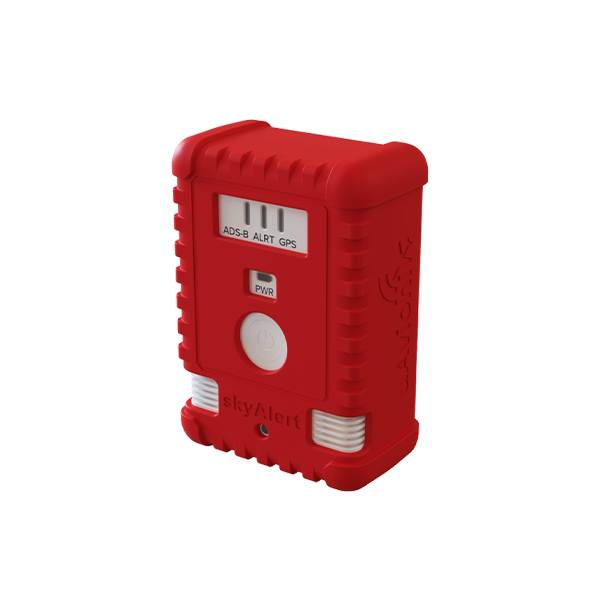
SKU: UAX-90128-01
$499
SKYALERT
Pair SkyAlert with the iOS DroneDAA app, and your SkyAlert functionality evolves from an Audible alerting tool, to both audible and visual. DroneDAA displays nearby traffic, weather, LAANC grids, class airspaces + TFR’s and more on your iPad or iPhone.
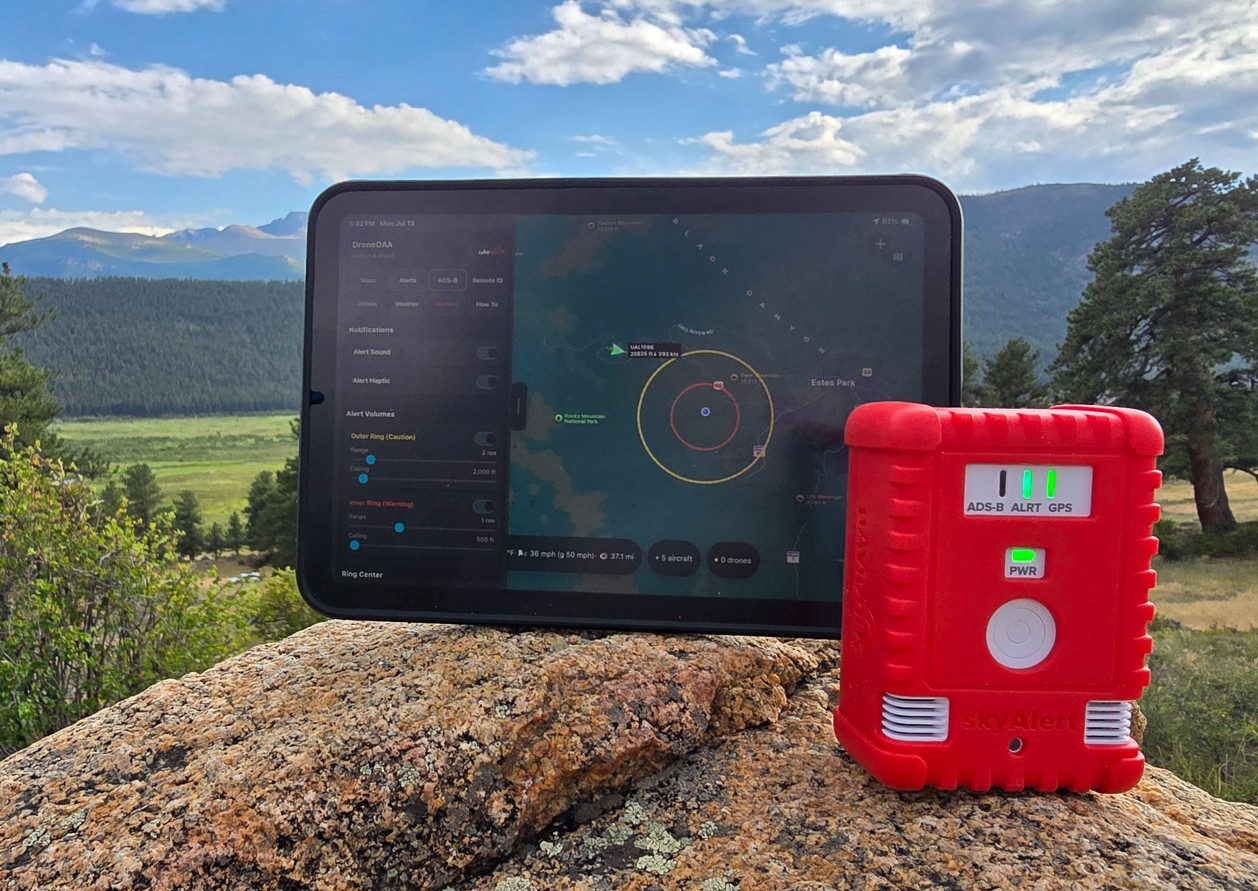
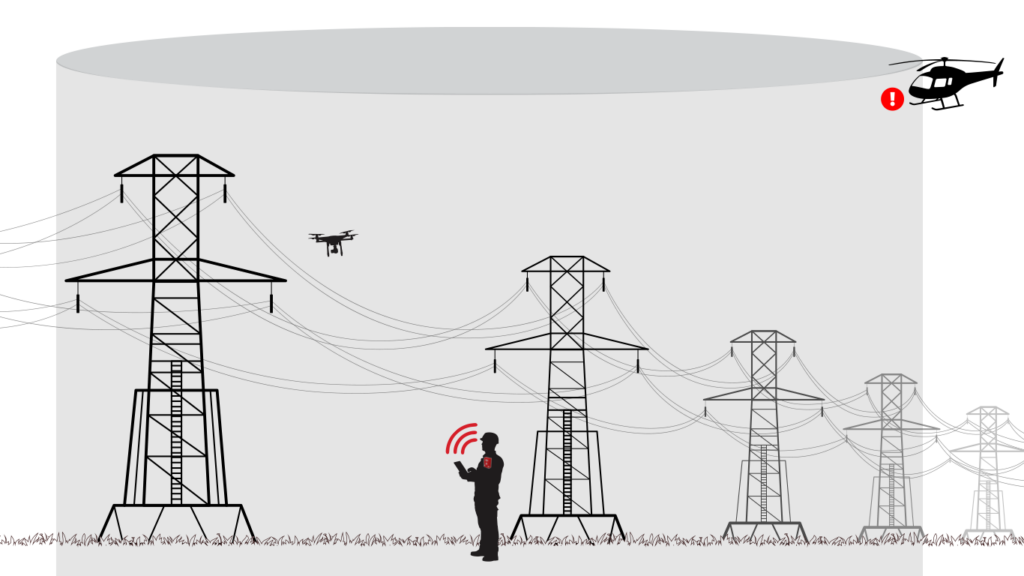
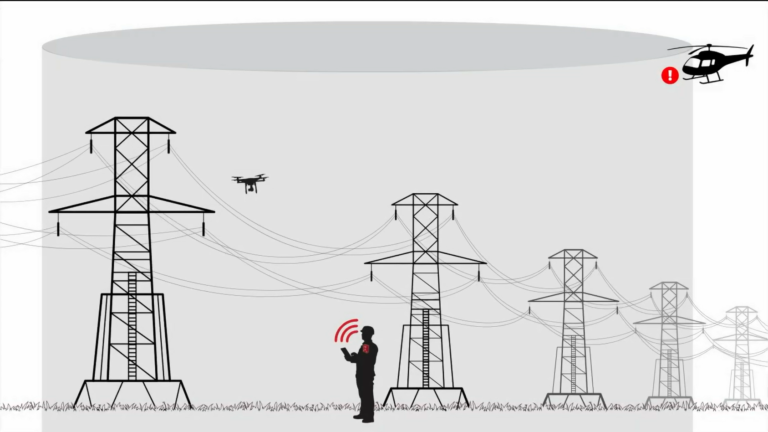
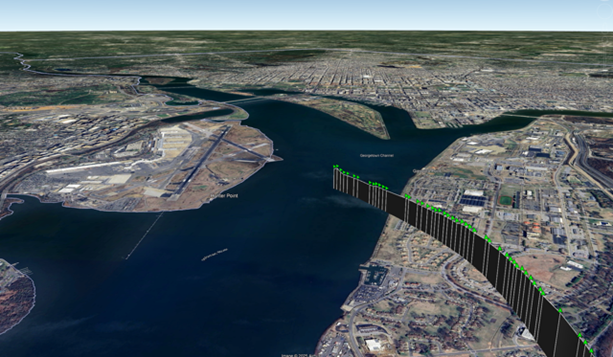
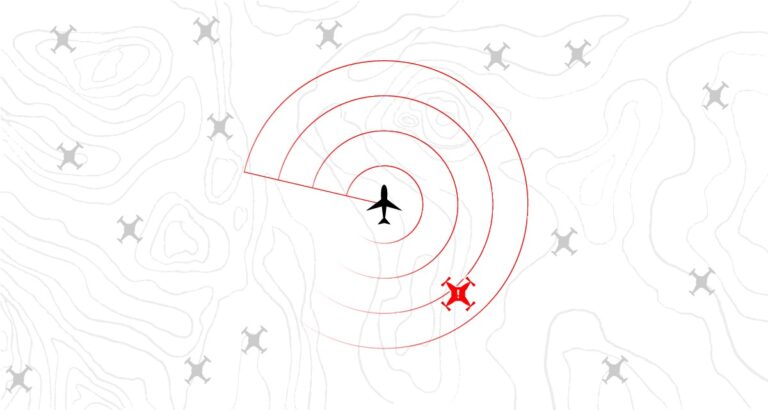
UAS field crews configure monitoring AGL altitude and monitoring radius, and once set they can forget about skyAlert and move to the job at hand. Audible alarms are triggered by any breach of the configured virtual ‘hockey puck’
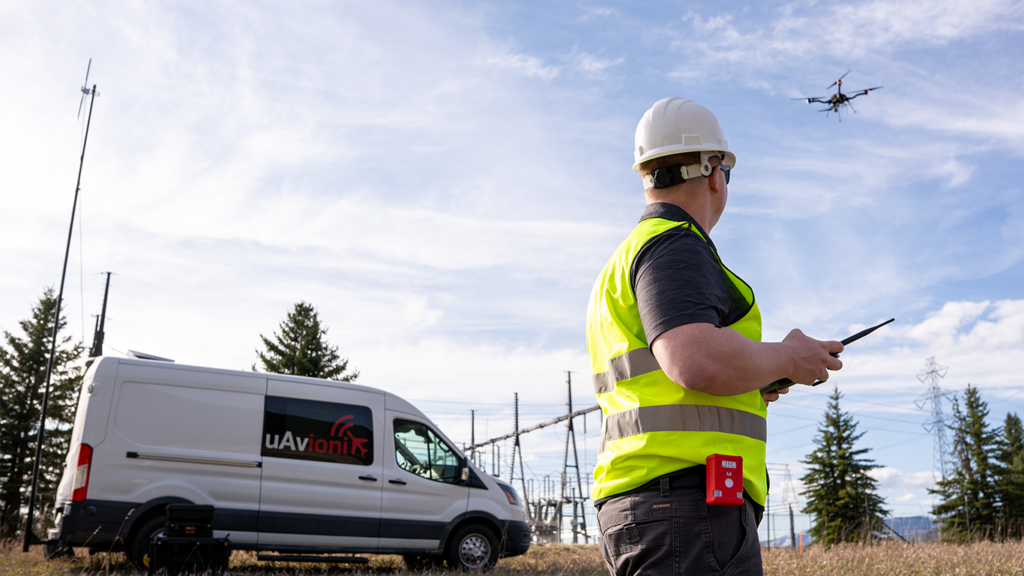
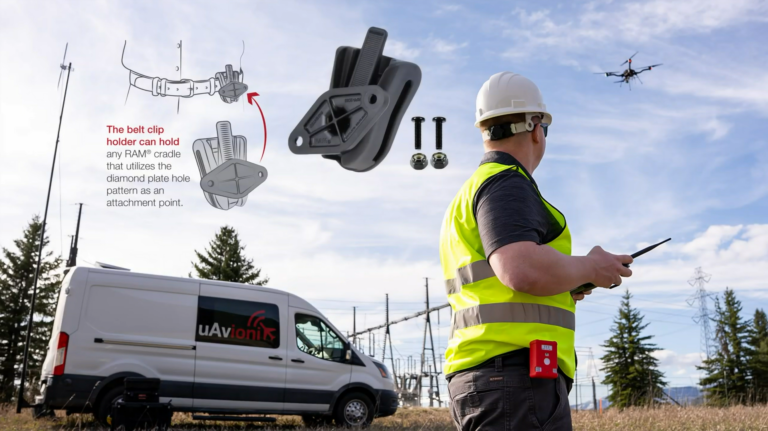
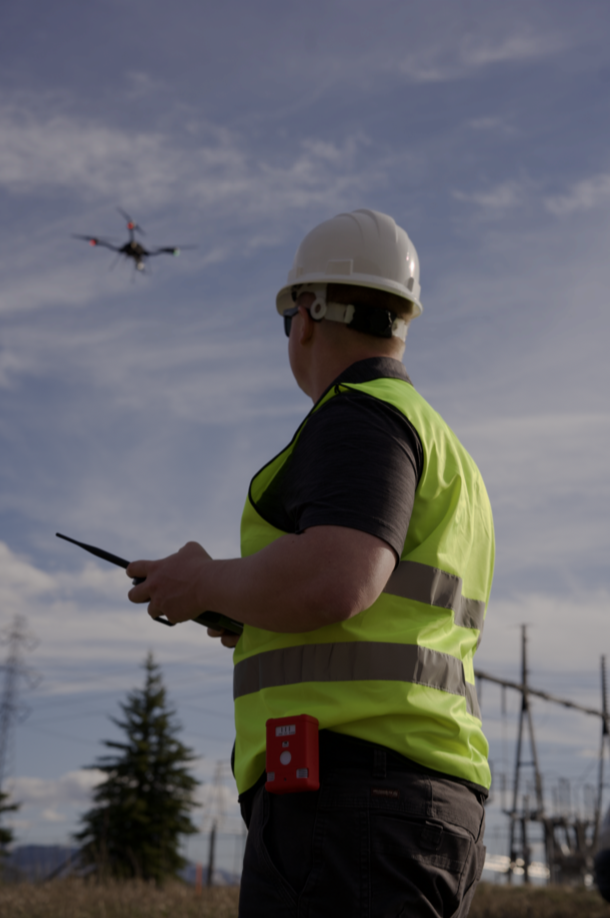
Lightweight, rugged, and ships with a RAM® belt/visor clip, ideal for utility, emergency response, and agricultural operations. SkyAlert ships with a silicone sleeve for impact resistance in the event of drops or knocks.
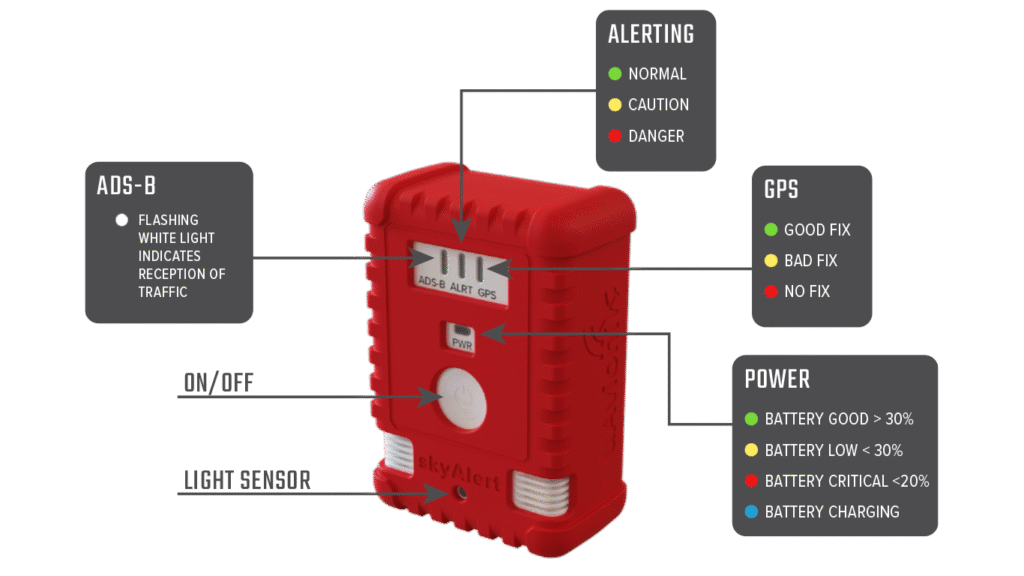
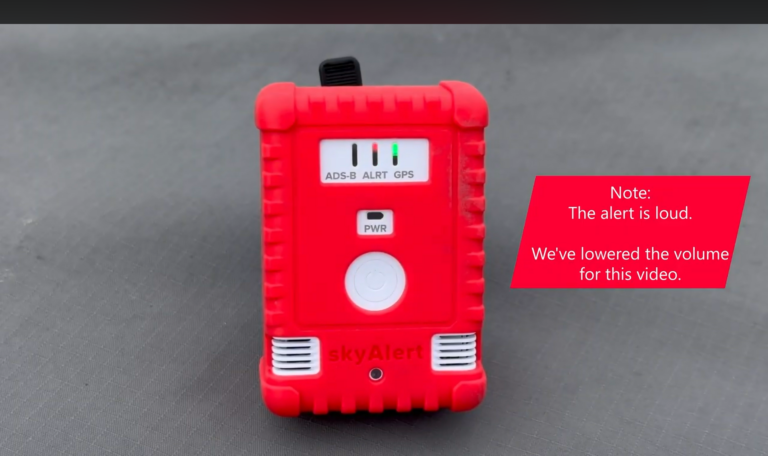
Multicolor LEDs assist operators by highlighting status, battery life, GPS fix, and system health.
Additional Features
Detects cooperative aircraft on both 978 MHz (UAT) and 1090 MHz, enabling comprehensive situational awareness for UAS crews.
DroneDAA displays real time ADS B traffic latency from SkyAlert to ensure transparency and certainty of real-time traffic.
Broadcasts GDL-90 data over Wi-Fi, enabling real time visual traffic on EFB app’s such as DroneDAA, ForeFlight, SkyDemon, and EasyVFR.
FAQ’s
skyAlert detects cooperative aircraft broadcasting ADS-B Out on 978 MHz (UAT) and 1090 MHz (ES).
skyAlert supports compliance with waivers and rules where monitoring ADS-B is essential. skyAlert also has almost zero latency, seeing as skyAlert is the receiver itself, as such removing any concerns regarding latency from ADS-B for purposes or airspace deconfliction.
No installation is needed. skyAlert is wearable and comes with a RAM® clip for belt or visor attachment.
Connect to skyAlert’s Wi-Fi SSID and navigate to 192.168.4.1/settings to adjust altitude/range alert zones, LED brightness, and more.
Yes. While skyAlert can stream traffic data to standard electronic flight bag (EFB) applications, it is built to integrate natively with DroneDAA on your iPhone or iPad.
Unlike a generic EFB, DroneDAA is specifically tailored for uncrewed aviation and serves as the ultimate companion app to your hardware. Beyond displaying live crewed aircraft traffic from your skyAlert receiver alongside FAA airspace layers and weather, it gives you complete tactical control. Directly from the app, you can configure proximity alerts with haptic and audio feedback, adjust traffic alarm ranges, sync alert thresholds, and manage your hardware settings on the fly.
DroneDAA can be accessed from your computer at: www.detectandavoid.com
DroneDAA is available on the Apple AppStore here.
Store in the provided foam case. Keep the unit clean, dry, and charge regularly with the included USB-C cable.
Ensure the charger is USB 5V 2A. Higher-output chargers may not be compatible.
Hold the power button for ~10 seconds until LEDs flash white to restore factory settings.
Documentation
Stay Connected
"*" indicates required fields